How to deploy SQLite on Render using Docker
In this tutorial, we are going to deploy a small application with SQLite on Render using Docker. We'll store the database on a persistent disk and check that a row survives a restart.
SQLite is an embedded database. Your application opens a database file directly, so there isn't a separate SQLite server to connect to like there is with MySQL or PostgreSQL. We're going to deploy the app and its database together.
You'll need GitHub and Render accounts. Persistent storage requires a paid service. Check the price shown by Render before deploying.
Create the application
You can find the example files here. Create a GitHub repository for this example. Add an app.py file with the following:
import json
import os
import sqlite3
from http.server import BaseHTTPRequestHandler, HTTPServer
from pathlib import Path

DB_PATH = Path(os.environ.get("DATABASE_PATH", "/var/data/tutorial.sqlite3"))


def connect():
    return sqlite3.connect(DB_PATH, timeout=10)


class Handler(BaseHTTPRequestHandler):
    def do_GET(self):
        if self.path not in ("/", "/healthz"):
            self.send_error(404)
            return
        with connect() as db:
            rows = db.execute(
                "SELECT id, message FROM notes ORDER BY id"
            ).fetchall()
        payload = json.dumps({
            "notes": [
                {"id": row[0], "message": row[1]} for row in rows
            ]
        }).encode()
        self.send_response(200)
        self.send_header("Content-Type", "application/json")
        self.send_header("Content-Length", str(len(payload)))
        self.end_headers()
        self.wfile.write(payload)


if __name__ == "__main__":
    DB_PATH.parent.mkdir(parents=True, exist_ok=True)
    with connect() as db:
        db.execute(
            "CREATE TABLE IF NOT EXISTS notes ("
            "id INTEGER PRIMARY KEY, message TEXT NOT NULL)"
        )
    address = ("0.0.0.0", int(os.environ.get("PORT", "10000")))
    HTTPServer(address, Handler).serve_forever()
The app creates a notes table when it starts and returns the rows as JSON. It only exposes a read endpoint; we'll add our test row from the service's shell.
Next, add a Dockerfile:
FROM python:3.13-slim
WORKDIR /app
COPY app.py .
ENV PYTHONUNBUFFERED=1
ENV DATABASE_PATH=/var/data/tutorial.sqlite3
EXPOSE 10000
CMD ["python", "app.py"]
Add a .dockerignore too:
.git
__pycache__
*.sqlite3*
.env
Commit the files and push them to GitHub. We don't need a requirements file because this example uses Python's standard library.
Create the Docker service
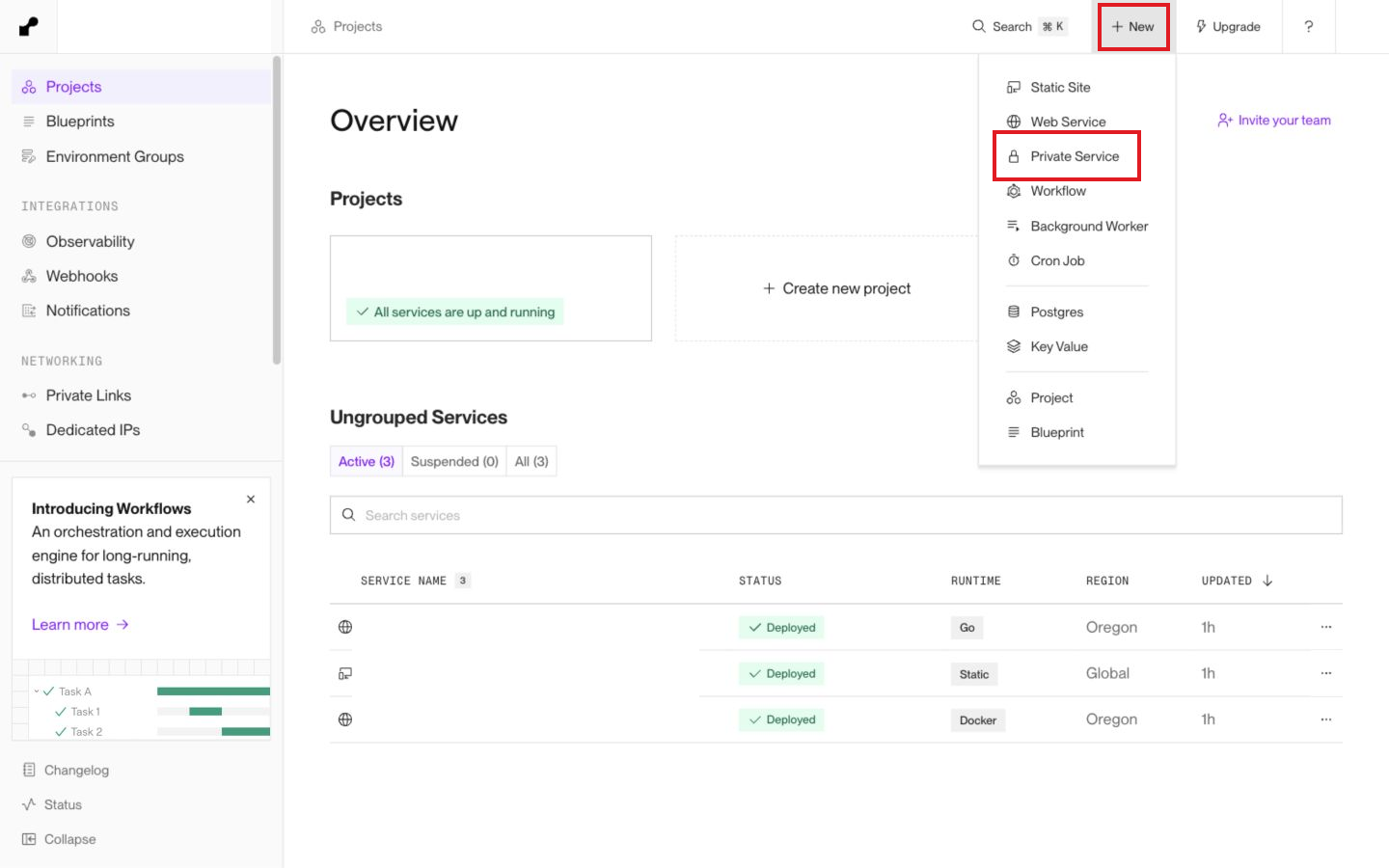
In Render, hit New, then Private Service.
Select your GitHub repository. Give the service a name such as sqlite-docker-tutorial, choose Docker as the language, and pick your region. If your files are inside a subdirectory, set Root Directory to that directory. My copy uses examples/render-sqlite on the codex/render-database-tutorials branch. If you put the files at the root of your own repository, leave Root Directory empty. Set Dockerfile Path to Dockerfile relative to that directory.
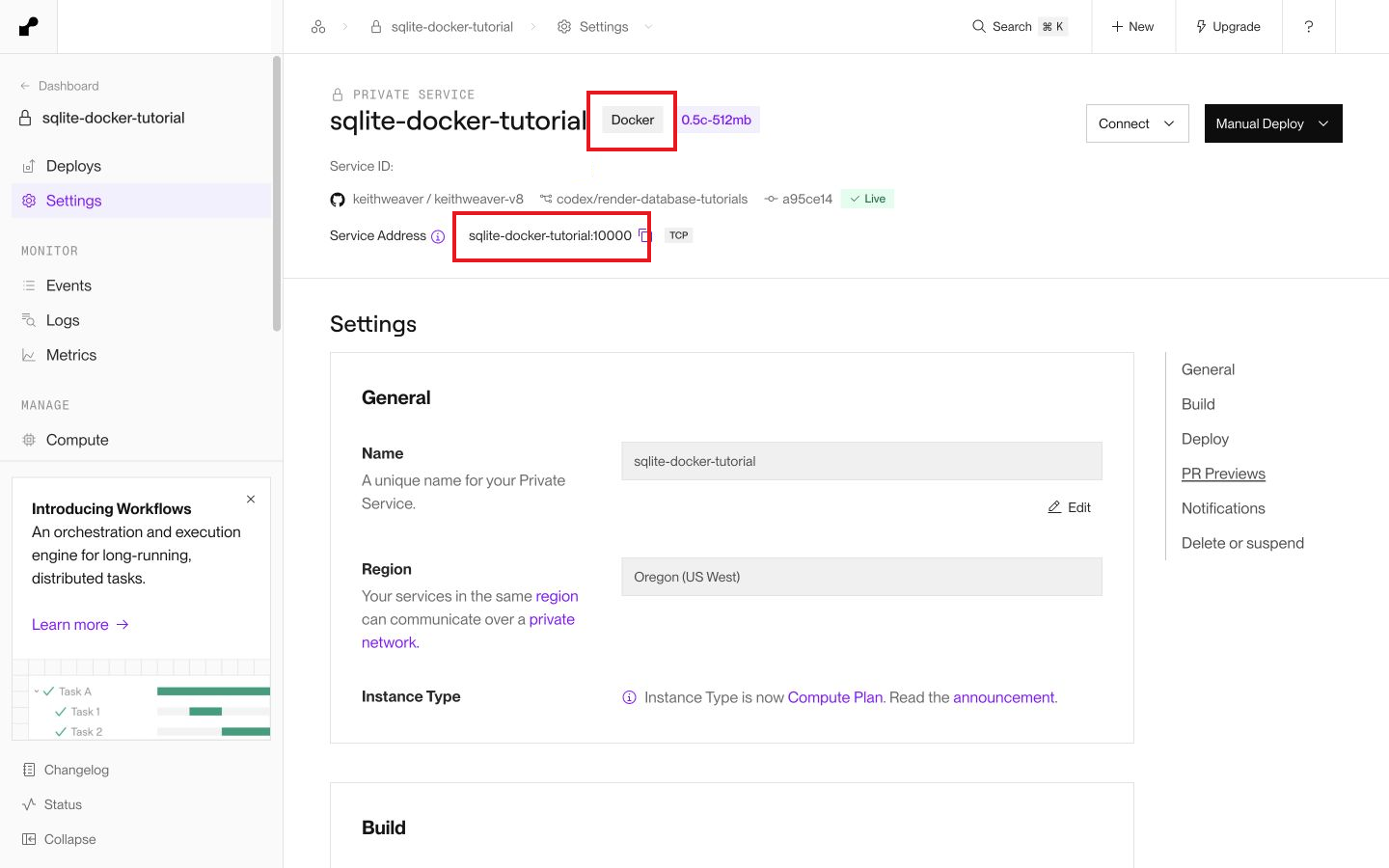
This example uses a private service so only your Render services can reach its HTTP endpoint. A public web service is another option for an application you intend to expose, but add the authentication and access rules your data needs first.
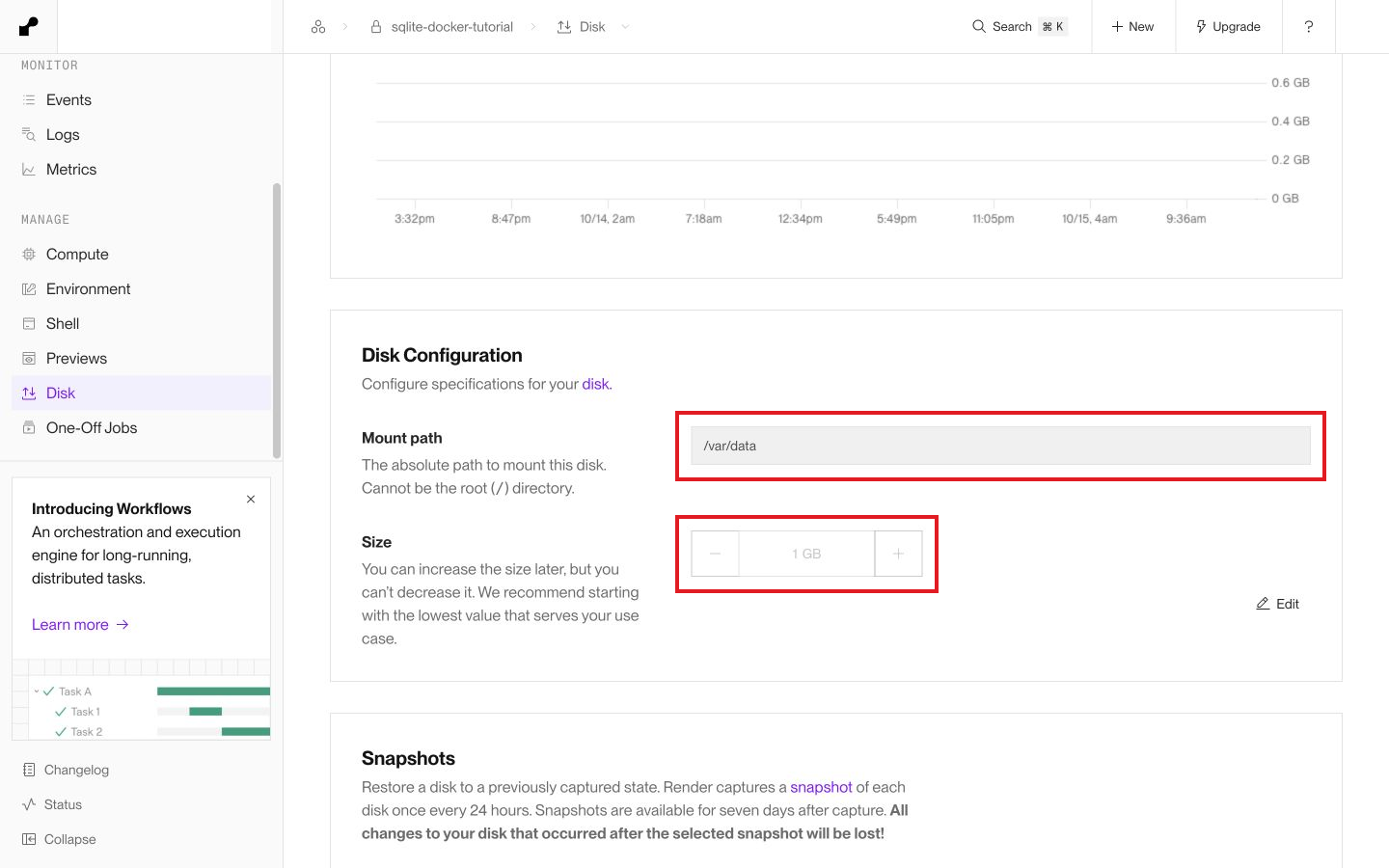
Under Advanced, hit Add disk and set the mount path to /var/data. A 1 GB disk is sufficient for this tiny example. Our Dockerfile points DATABASE_PATH at a file inside that directory.
Review the price, then hit Deploy private service.
Add a row and check persistence
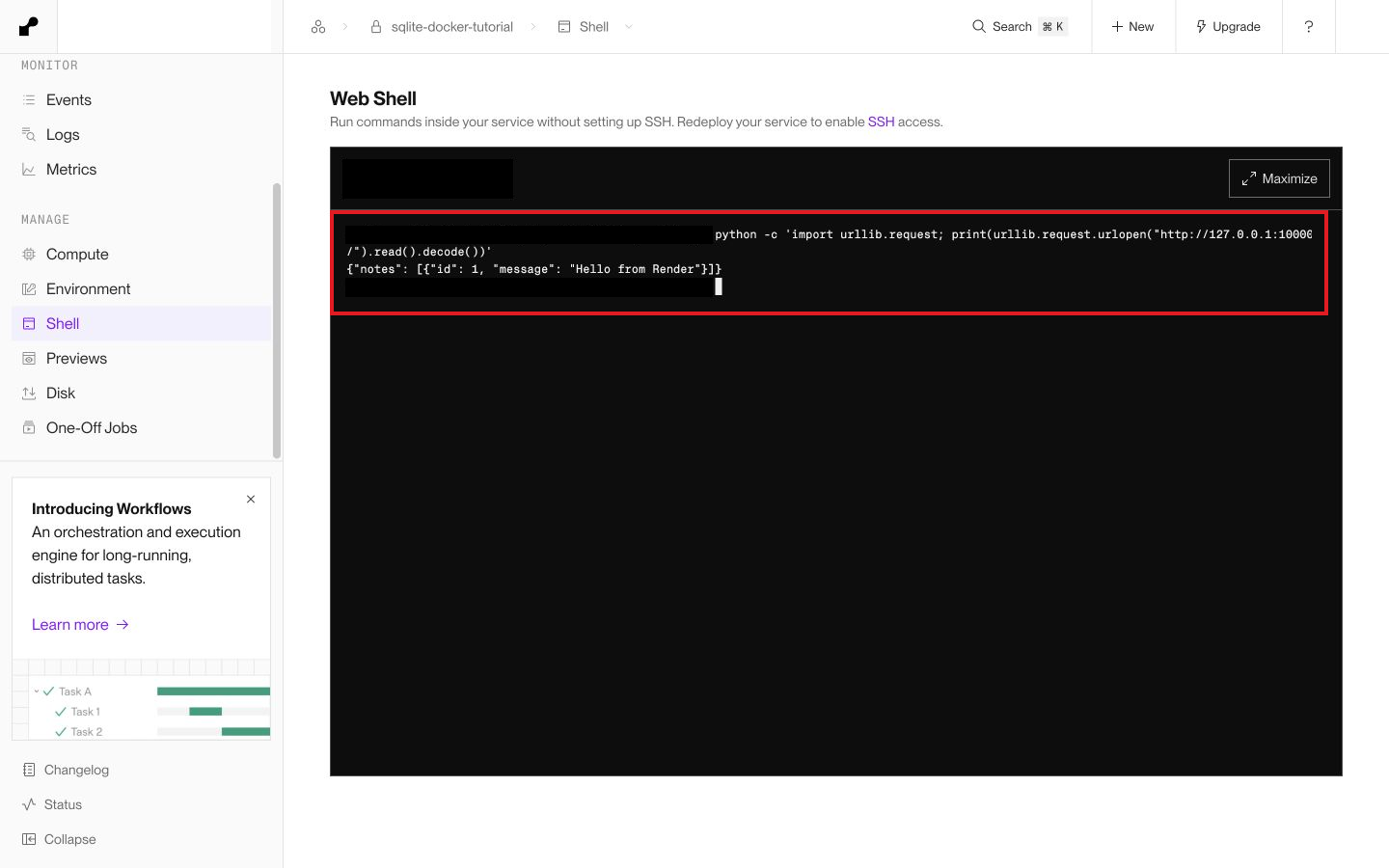
Once the service is live, open Shell. Run this Python snippet:
python - <<'PY'
import os
import sqlite3

with sqlite3.connect(os.environ["DATABASE_PATH"]) as db:
    db.execute("INSERT INTO notes (message) VALUES (?)", ("Hello from Render",))
    print(db.execute("SELECT id, message FROM notes").fetchall())
PY
You can also check the application's response from the same shell:
python - <<'PY'
from urllib.request import urlopen
print(urlopen("http://127.0.0.1:10000/").read().decode())
PY
Open Deploys, hit Manual Deploy, and choose Restart service. Once it is live again, reopen Shell and run the HTTP check again. Your note should still be in the response. I ran this check against the deployed app, and the note survived the restart.
Using SQLite in your app
Keep the database file and the code that opens it in the same service. Another Render service can't mount this disk; it would call your app's HTTP API instead. A disk-backed service runs as one instance, so plan around that before scaling.
For backups, use SQLite's backup API to create a consistent copy and store that copy elsewhere. Copying a live database file alone can miss data in companion files. For example:
import os
import sqlite3

with sqlite3.connect(os.environ["DATABASE_PATH"]) as source:
    with sqlite3.connect("/tmp/tutorial-backup.sqlite3") as destination:
        source.backup(destination)
Download or upload that backup to durable storage before the service restarts; /tmp is temporary. Test restoring a copy before relying on your backup process.
That's it! The application and SQLite database are deployed together in one Docker service, with the database file on persistent storage.